Computer Troubleshooting

Monday, September 5, 2011
0 komentar

image Do you often experience damage to your computer? Are you going to directly call a technician? Here are some tips that might help you.


Trouble on the processor

If the processor is damaged / not installed properly what happens is:

  • You hear a long BEEP 1 time rising.
  • No display / Blank
  • Lights / LED indicator blinking monitor proofed

Actions to be performed are:

  • Fix the location of the processor
  • Check Pin / leg processor if one is bent
  • Check fan rotation, sometimes the cooling fan is not spinning

Trouble on the RAM

If the memory is damaged / not installed properly what happens is:

  • You hear a continuous length of BIP 4 times
  • No display / blank
  • Lights / LED indicator blinking monitor proofed

Actions to be performed are:

  • Fix a memory location, and place it in the correct slot
  • If damaged replace it with another memory / new.

Trouble on the harddrive / harddisk


If the harddrive / harddisk is not readable / detected or damaged then what happens is:

  • Hard drive not detected
  • HDD error message appears
  • A message appears No System disk error, boot failure, etc.
  • booting the old
  • You hear a rough on the disk
  • Always finish scandisk when booting

Actions to be performed are:

  • Check the power cable and data cable, be sure not to install it upside down
  • Check your BIOS settings may not have been activated
  • If using more than one harddrive / harddisk, check the jumper may be a collision.
  • Check the file system (I / O.sys and MSDOS.SYS) if damaged / lost give the new system
  • Let scandisk first, if there are BAD you can do to reformat.

Trouble on the VGA

If the VGA is damaged then what happens is:

  • You hear a short-BIP 4 times
  • No display / blank
  • Lights / LED indicator blinking monitor proofed
  • Display swayed and blurred
  • Display colors change color.

Actions to be performed are:

  • Check your VGA card and the correct location
  • Check the data cable may not have been installed properly
  • Check the settings of the vertical / horizontal and contrast / brightness
  • Check the VGA drivers that are used may not be appropriate.
Read More ..

Make friends with Linux

Saturday, September 3, 2011
0 komentar

image This blog was originally just talking about the tricks and software in Windows environment. From now onwards (hopefully), Linux will be posting additional material to me. Let's get acquainted with linux.

A Short History Linux
What is Linux? Linux is a kernel created by Linus Torvalds. So what's the story until Linus created the kernel of this.

image

Linus Benedict Torvalds, born in Helsinki, Finland on 26 December 1969. Linus entered the University of Helsinki Department of Computer Science. Linus gets a lesson on the campus of Unix and C Programming, Linus bought his first PC. In his time Unix operating system which is very famous and very attractive interest. Unfortunately this is very expensive operating systems and source code is freely available. Then as an alternative, Linus tries MINIX operating system (UNIX Minimal) which is a simple clone of the UNIX operating system.

MINIX was created by Dr. Andrew Tanembaum to teach students about the internal workings of the operating system. But Dr. Andrew Tanembaum has no intention to develop a MINIX. MINIX source code is provided in the book of their own and the floppy disk that can be purchased and of course has the distribution rights.

Because the MINIX source code that is not free in the person who tinkers, make Linus thinking to create an operating system similar to MINIX, but do not have limitations for development or copyright which means it is free. Linus finally managed to make a kernel (core operating system) that can be used but still have very limited capabilities.

After that Linus send emails expecting cooperation programming community. Message from Linus provides exceptional response. Great programmers develop hand in hand-made operating system kernel to be an operating system that is ready for use.
Even until now programmers from various communities go hand in hand to develop this operating system, so do not be surprised if up to now circulate a lot of Linux distros. Some are free and some are paid.

For the next post about Linux distributions are known.

Read More ..

Browsing Web Pages Offline

Sunday, July 31, 2011
0 komentar

httrack2 Did you ever get a website that interests you and you want to read all the contents? But you do not have the chance to always access the internet? You can read it offline. Use the application HTTrack to download all web pages you want. Then you can browse all the pages of the website as you are online. In addition, browse web pages offline is definitely faster than online.

These are the steps :

  1. Download HTTrack here. Then install on your computer that is online.
  2. Run the program HTTrack. Click Next. httrack1
  3. Enter the project name and category of project is up to you. Then in the Base Path enter the storage place the downloaded. Click Next.
  4. Enter the website URL address you want to download. Click Next. Click Finish. Wait until the download is complete.
  5. To access the web pages you downloaded, open the repository that you specify and then open the index.html.

Download HTTrack

Read More ..

Install Windows 7 From Flashdisk

Thursday, July 21, 2011
0 komentar

images Windows 7 definitely shaped pieces that sold DVDs. Means to install it must use aDVD-ROM. But what if your DVD-ROM is damaged or you are using a Netbookthat usually does not have an internal DVD-ROM. Are you looking for an ExternalDVD-ROM? An easier way is to install Windows 7 using flashdisk media. How?


Untitled

Windows 7 USB DVD Tool, is a software to make our flashdisk to be used to install Windows 7. This software is very easy to use. following steps:

  1. Prepare min 4GB Flashdisk size. (Because Windows 7 is sized approximately2.3 GB)
  2. Prepare an ISO file of Windows 7. You can make it use UltraISO or similar software.
  3. Run Windows 7 USB DVD software tool, then please browse an ISO file of Windows 7 that you created and used an ISO file that should have never in modified.
  4. Then select the media type you'll use, for this time, we select the USB Device
  5. Then make sure flashdisk is mounted and read by this software. Then click Begin Copying.
  6. If your flash is not empty, notification will appear to delete the contents first. Click the Erase USB Device.
  7. Wait until the process is complete.
  8. Once completed, setting your computer bios to boot first from flashdisk. And install windows as usual.

Download Windows 7 USB DVD Tool

Read More ..

Convert NRG Files Become iso File

Wednesday, July 20, 2011
0 komentar

images ISO and the NRG files are both the image file. the NRG image files with extensions created using nero. But some applications only support the ISO and the NRG files do not support. So what if you only have a the NRG image file? You can use UltraISO to convert the NRG files to ISO files. UltraISO application actually has many functions, such as make ISO file or to burn the ISO file to a CD or DVD. But this time it only discuss about convert the NRG files to ISO. Link to Download, I provide at the end of this article.

Step 1.
Open UltraISO program.

1

Step 2.
Click the Convert button. Or go to the Tools menu -> Convert ...

2

Step 3.
On the Input Image Filename(s):, enter the the NRG files to be converted. On the Output Directory:, enter the storage location of the ISO file after convert. On the Output Format, select Standard ISO(.ISO). Then click Convert.

3

Step 4.
Wait until the process is complete.

4 5

I hope helpful

Download UltraISO

Read More ..

How To Reset Windows 7 Password

Tuesday, July 19, 2011
0 komentar

reset-windows-password[8]Did you forget your Windows 7 password? Actually, has a password Windows 7 reset disk facilities by selecting Create a password disk on the User Accounts settings. So what if you could not make it? You can use trinity rescue kit.3.3 is made ​​with the Linux kernel to reset your windows 7 password. It's just that you need a large bandwidth to download this file because its size is 100 MB more. I provide a link to download at the end of this article. You also need media to boot such as CDs or flash. If you want to use flashdisk, you can use UNetbootin to boot from flashdisk.
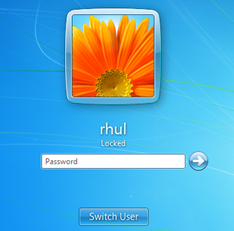
See the picture below, the user rhul still have the password.

1 2

We begin the step by step to reset user password above.

Step 1.
Prepare the boot media. Burning files on trinity rescue kit.3.3.iso a CD. Or use UNetbootin to create a boot from flash. Then set your computers bios to boot according to the media that you use.

Step 2.
After turning on your computer, select Run Trinity Rescue Kit 3.3 (default) and press enter.

3

Step 3.
Wait until the process is complete. Then type winpass-u your_user. In the example I use the user rhul, so I type winpass -u rhul, then press enter.

4

Step 4.
Then choose the location of Windows 7 partition on your computer. Example in the picture is /sda1/Windows. Because there is only one, so choose: 1. Then press enter. After that, information of user in Windows 7 will be displayed.

5

Step 5.
In the User Edit Menu option, because we will reset the password, so type 1 and press enter.

6

Step 6.
Restart your computers and go into Windows 7. Now user no longer have the password and can login without a password.

7 
May be useful

Download trinity rescue kit.3.3

Read More ..

Make Boot From Flashdisk

Friday, July 15, 2011
0 komentar

flashdisk9

If you want to install the operating system or run a specific programs via boot, but yourDVD-ROM does not exist or is damaged? what would you do? search DVD-ROM External? what about flasdisk? will be easier of course if you have a flashdisk withsufficient capacity. In addition to easier than have to burn the boot files into DVD,flashdisk is more flexible. So how do the boot from flash?


Application programs that I often use is unetbootin. A portable application is very easy to use that can be used to make your flashdisk into the media to boot.

image_thumb2 

This application provides some Linux distributions that can be instantly downloaded and extracted to your flashdisk. But if you have your ISO file for extracting, select DiskImage, then look for the ISO file to be extracted. In the picture I want to extract the slackware-install-dvd.iso. In the Type option, select the USB Drive. Then choose the location where your flashdisk drive. Then click OK. Wait for a rather long process.

After the extracting process is complete, there will be a restart option or not. Before you do the boot, set your bios to boot first from flashdisk. Good luck.

Download unetbootin

Read More ..
 

Copyright 2008 All Rights Reserved Revolution Two Church theme by Brian Gardner Converted into Blogger Template by Bloganol dot com